

Description
TL;DR:
- 🚀 Lightning fast backups
- 🪶 Lightweight – just over 1MB
- ⚡ Super-quick migration with only a few clicks
- 🎯 Incredibly easy to use – no tech skills required
- ☁️ Many free storage options: Google Drive, Dropbox, OneDrive, pCloud, Amazon S3 & more
- 🔒 Exclusive own storage solution with 1GB of free space – unique on the market!
👉 Try it out instantly on a live demo
—
Creating a backup of your site has never been easier!
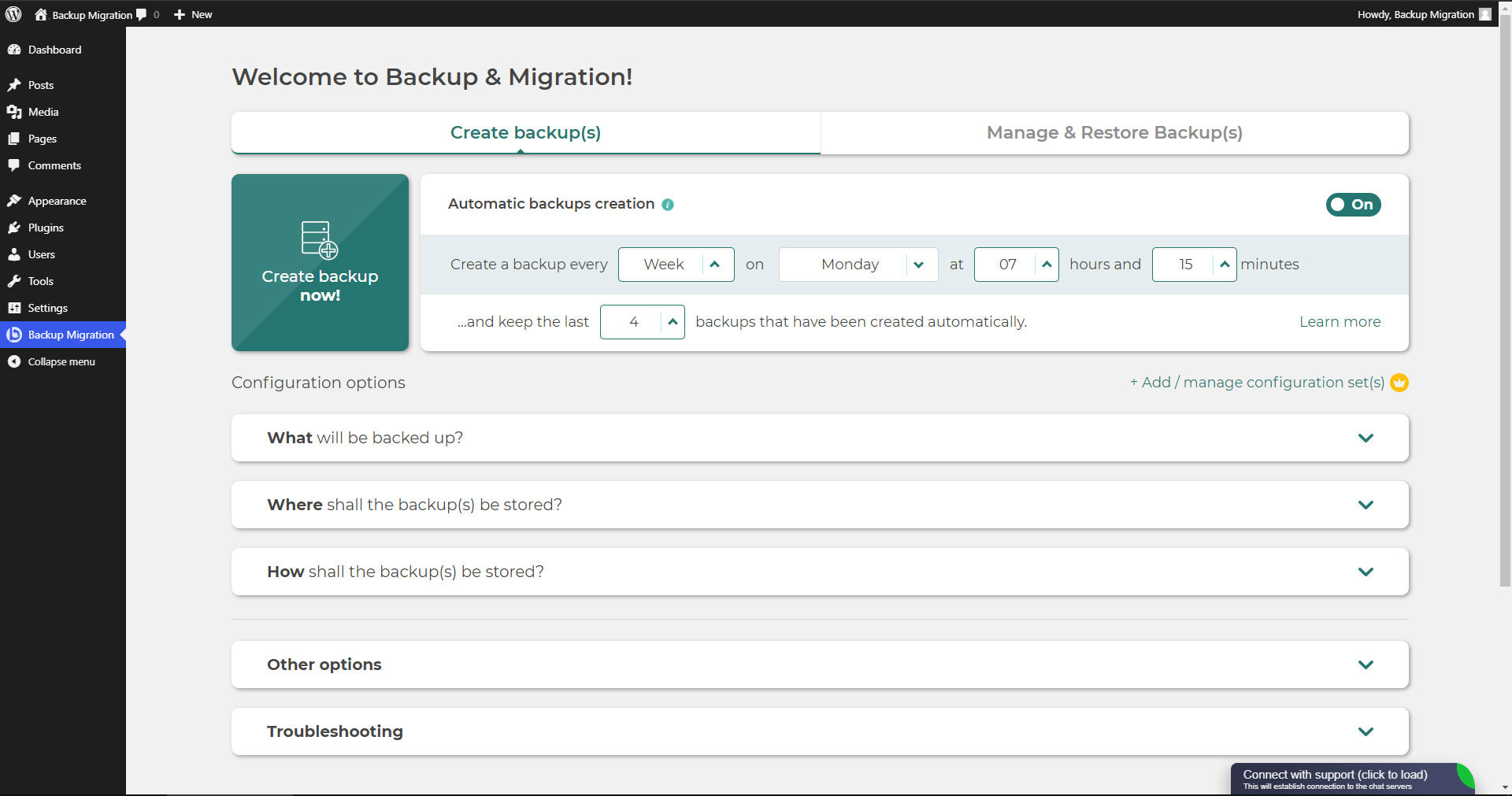
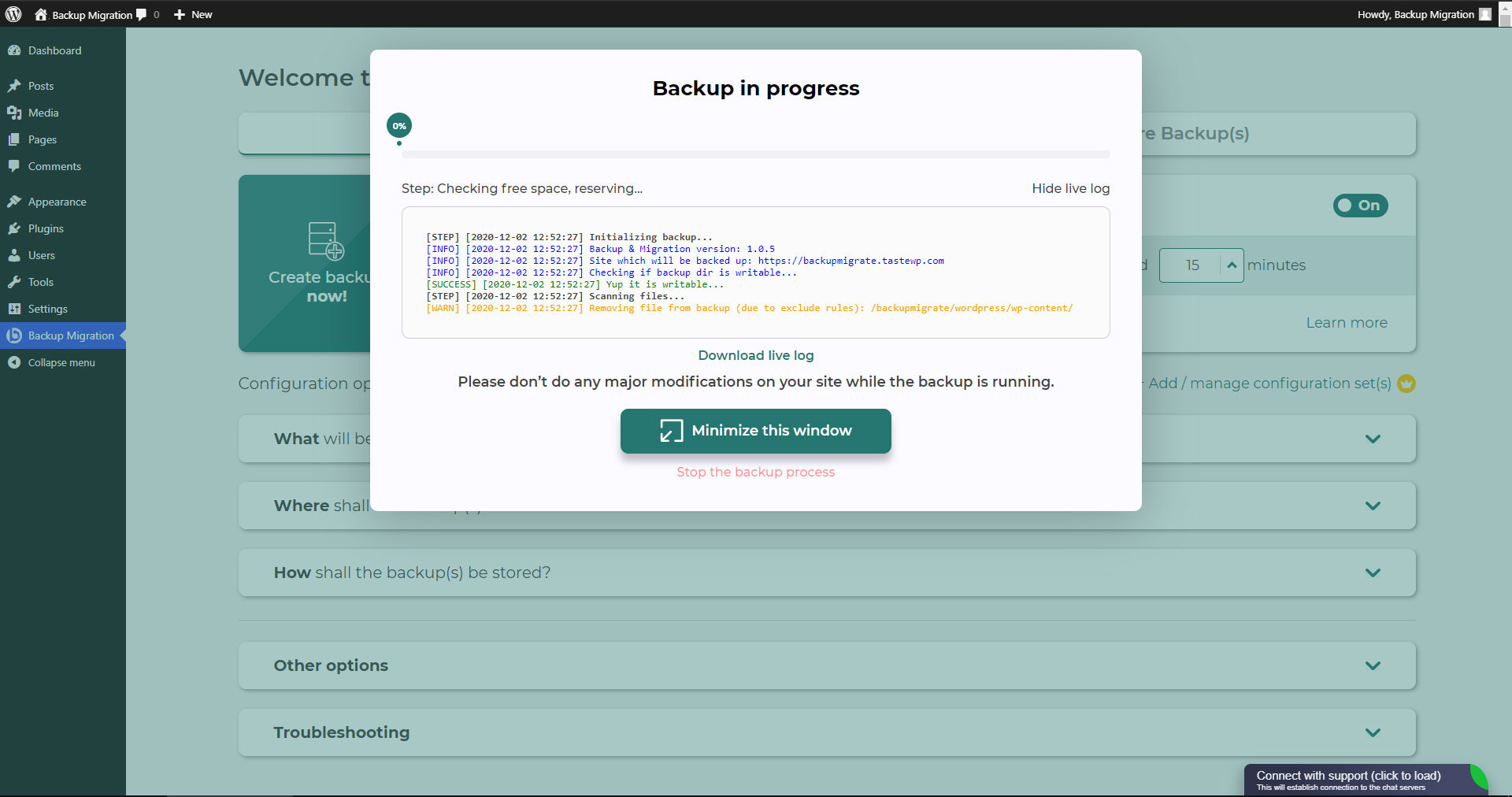
Simply install the plugin, click on “Create backup now” – done.
Website migration is just as easy and FREE, with just two clicks!
Wide range of available cloud storage locations: Google Drive, Dropbox, OneDrive, Amazon S3, Wasabi, pCloud, SFTP & FTP, and free cloud storage BackupBliss.
You can also schedule backups, e.g. define that a backup should be taken automatically every week (or every day/month).
Use a wide choice of configuration options:
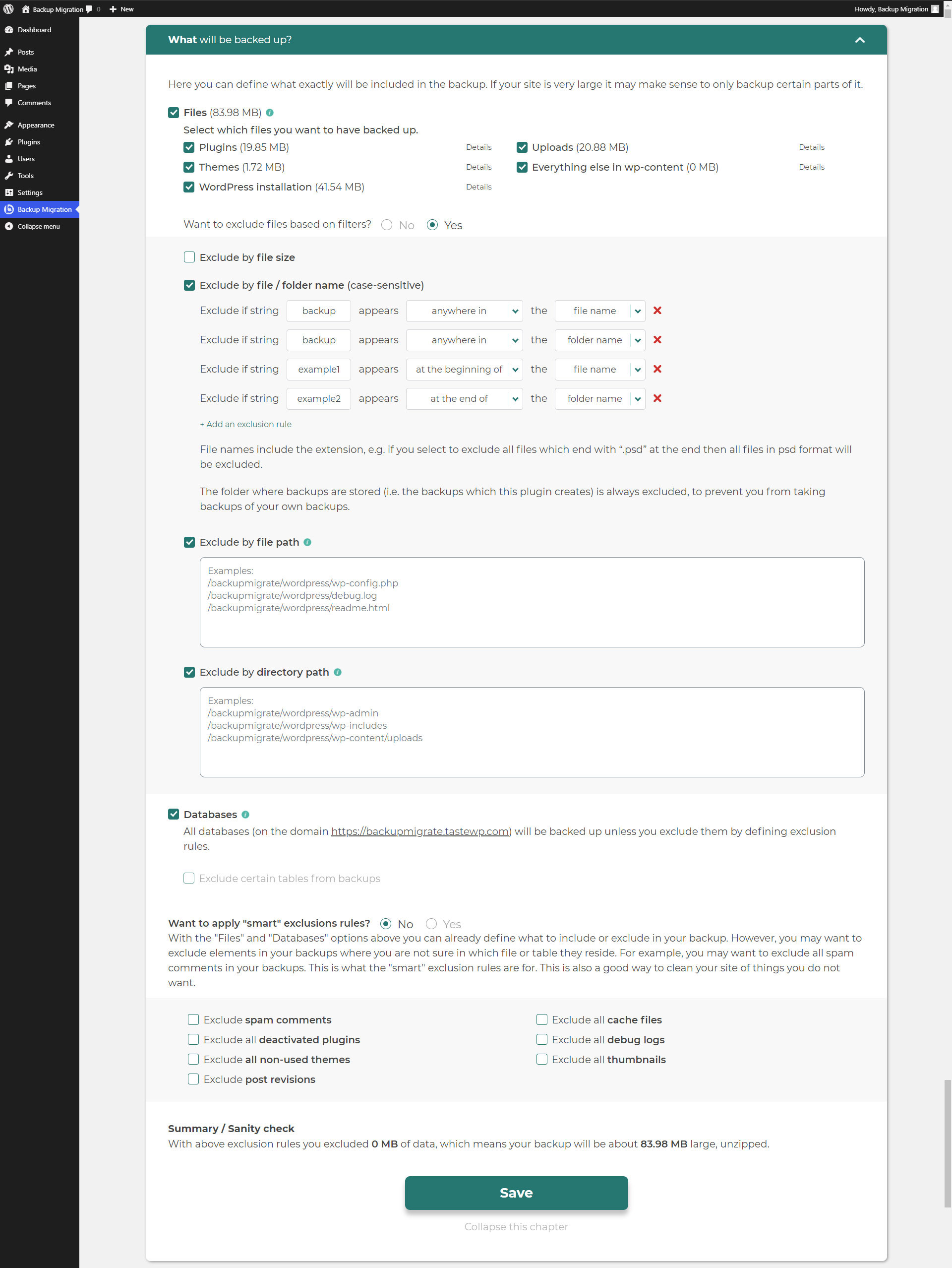
- Define exactly which files / databases should be in the backup, and which should not
- Define where the backup will be stored (store locally and/or backup to cloud)
- Define what name your backup should have, in which instances you should receive a notification email, and much more
- Additional advanced features included in the premium: smart exclusion rules, Tar and GZip compression methods, full email notifications, automatic backups before updates, and more.
This plugin is all in one solution if you need to migrate your site to another host or just restore the local backup.
Note: This (free) version is limited to backups of 4GB in size, due to native WordPress ZIP limitations. For unlimited sizes and increased stability for larger sites, please have a look at the Premium Plugin. The code of this free plugin is licensed under GPLv3, however, we claim rights to other content. Please read the full Terms of Use that touch other points as well and apply in entirety.
If any questions come up, please ask us in the Support Forum – we’re always happy to help!
Screenshots
Installation
Admin Installer via search
- Visit the Add New plugin screen and select “Author” from the dropdown near search input
- Search for “Migrate”
- Find “Backup Migration” and click the “Install Now” button.
- Activate the plugin.
- The plugin should be shown below the settings menu.
Admin Installer via zip
- Visit the Add New plugin screen and click the “Upload Plugin” button.
- Click the “Browse…” button and select the zip file of our plugin.
- Click the “Install Now” button.
- Once uploading is done, activate Backup Migration.
- The plugin should be shown below the settings menu.
FAQ
-
How do I create my first backup?
-
Click on “Create backup now” on the settings page of the BackupBliss – Backup Migration Staging plugin.
BackupBliss – Backup Migration Staging will by default create a backup that contains everything from your site, except the BackupBliss plugin’s own backups and WordPress installation – if you want to include the WordPress installation as well, tick the checkbox in the section “What will be backed up?”.
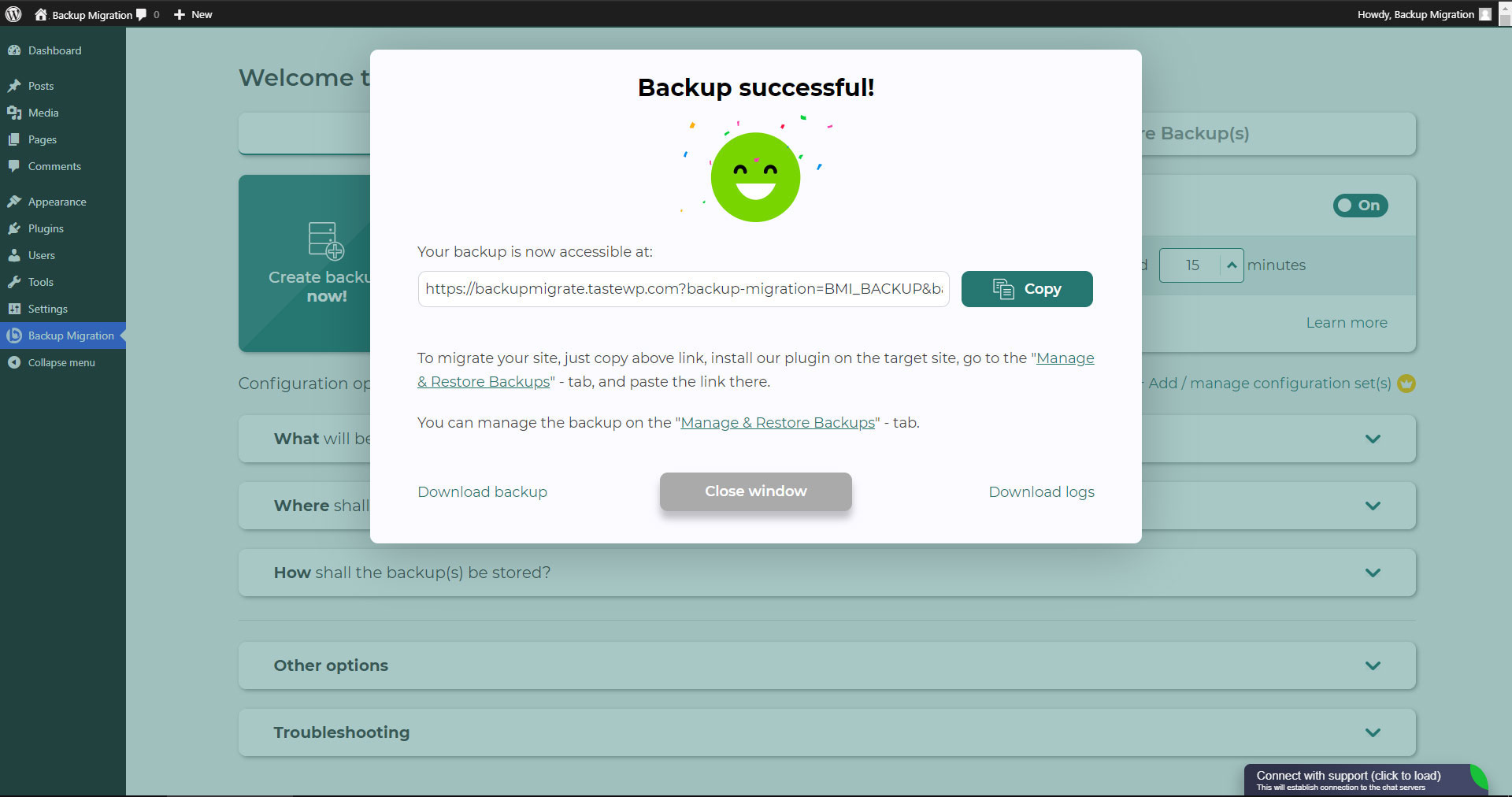
You can download or migrate your backup (use the plugin as a WordPress duplicator) immediately after the backup has been created.
-
How do I restore a backup?
-
-
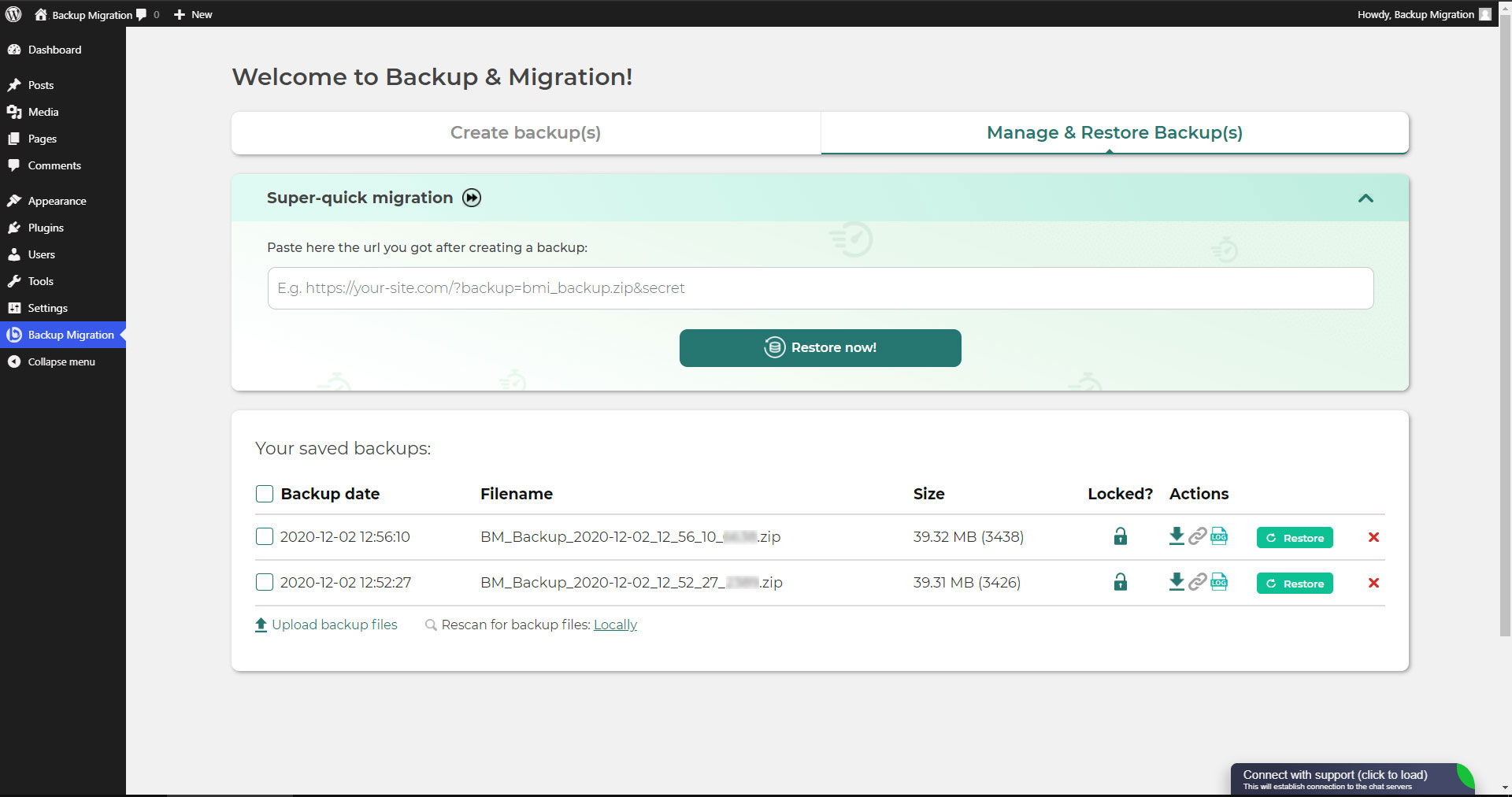
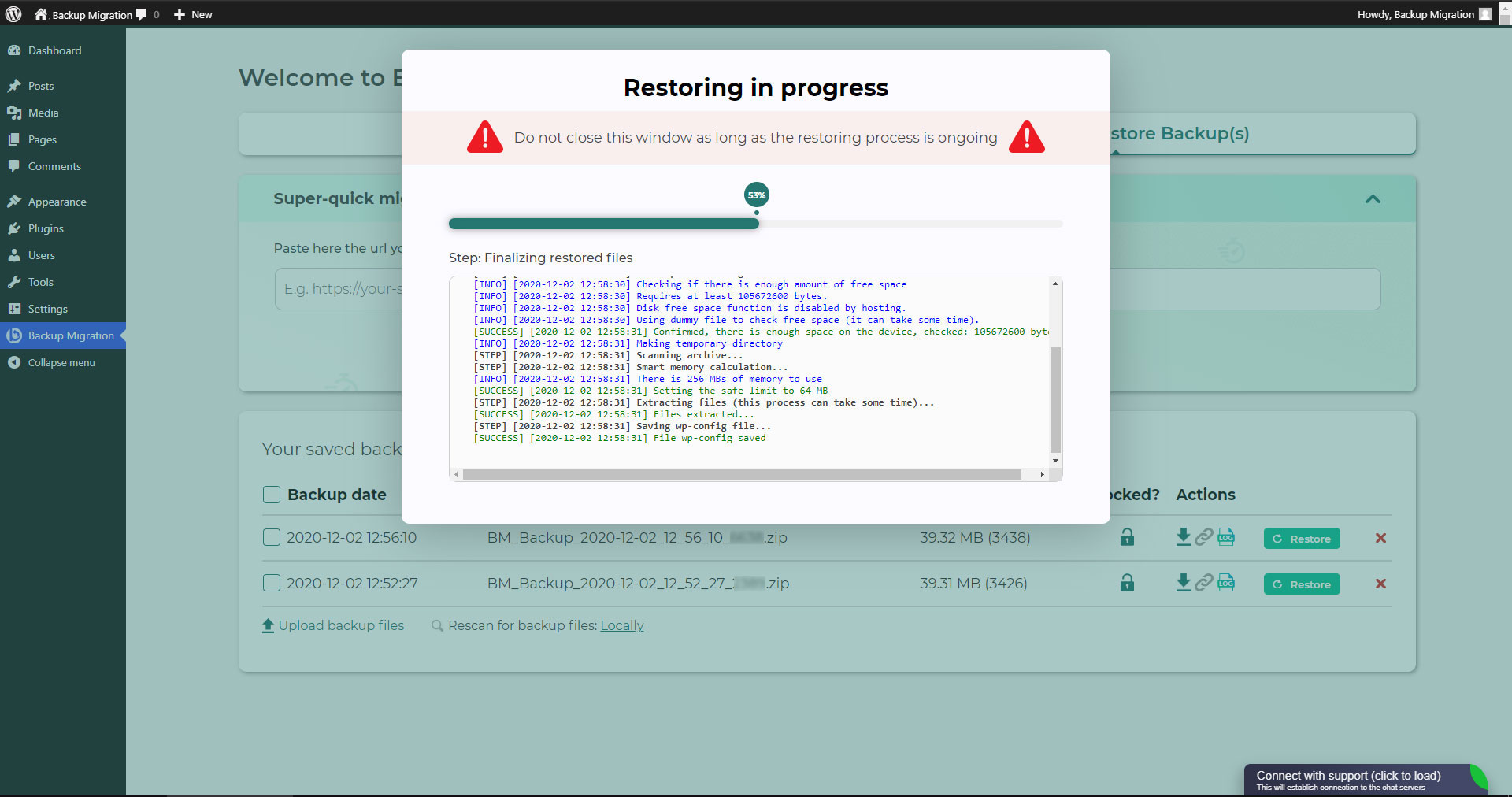
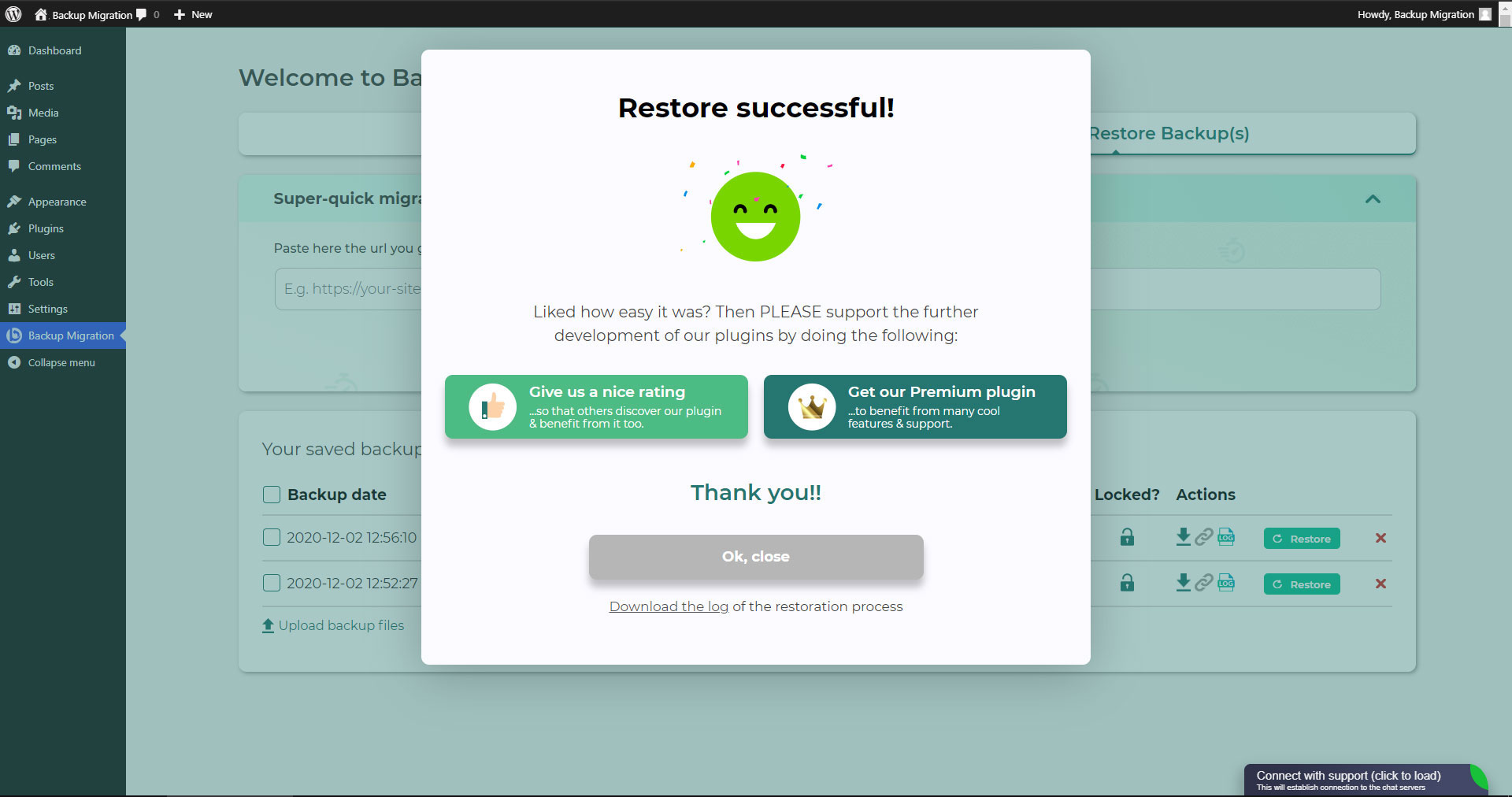
If your backup is located on your site: Go to the BackupBliss Backup Migration Staging plugin screen, then to the Manage & Restore Backup(s) tab where you have your backups list, click on the Restore button next to the backup you would like to restore.
-
If your backup is located on another site: Go to the BackupBliss – Backup Migration Staging plugin screen on site #1, then to the Manage & Restore Backup(s) tab where you have the backups list, click on the “Copy Link”-button in the “Actions”-column. Go to the BackupBliss – Backup Migration Staging plugin screen on site #2, then to the Manage & Restore Backup(s) tab, click on “Super-quick migration”, paste the copied link, and hit “Restore now!” button. This process will first import the backup and then restore it, i.e. Backup Migrate also serves as backup importer.
-
If your backup is located on another device: Go to the BackupBliss – Backup Migration Staging plugin screen, then to the Manage & Restore Backup(s) tab, and click on the “Upload backup files” button. After the upload, click on the Restore button next to the backup you would like to restore.
-
If your backup is located on Google Drive, OneDrive, Dropbox, Amazon S3, Wasabi, BackupBliss Storage, pCloud, FTP or SFTP: Go to the BackupBliss – Backup Migration Staging plugin screen, then to the plugin section “Where shall the backup(s) be stored?”, turn ON the respective external storage option, and connect to your account. After that, the plugin will sync the available backup files in the plugin section “Manage & Restore Backups” from where you will be able to run Restore.
-
-
How do I migrate or clone my site?
-
Migrate (or clone) a WordPress site by creating a full backup on the site that you want to migrate (clone) – site #1.
-
To transfer website directly from site #1 to site #2: Go to the BackupBliss – Backup Migration Staging plugin screen on site #1, then to the Manage & Restore Backup(s) tab where you have the backups list, click on the Copy Link button in the Actions column. Go to the BackupBliss – Backup Migration Staging plugin screen on site #2, then to the Manage & Restore Backup(s) tab, click on “Super-quick migration”, paste the copied link, and hit the “Restore now!” button. Make sure that the backup file on site #1 is accessible by setting “Accessible via direct link?” to “Yes” in the plugin section “Where shall the backup(s) be stored?”
-
To migrate the website indirectly: Go to the BackupBliss – Backup Migration Staging plugin screen, then to the Manage & Restore Backup(s) tab, and click on the “Upload backup files” button. After the upload, click on the Restore button next to the backup you would like to restore.
-
To migrate the website with Google Drive, OneDrive, Dropbox, Amazon S3, Wasabi, BackupBliss Storage, pCloud, FTP or SFTP: Go to the BackupBliss – Backup Migration Staging plugin screen, then to the plugin section “Where shall the backup(s) be stored?”, turn ON the respective external storage option, and connect to your account. After that, the plugin will sync the available backup files in the plugin section “Manage & Restore Backups” from where you will be able to run Restore.
-
-
Where can I find my backups?
-
BackupBliss – Backup Migration Staging allows you to download backups, migrate backups, or delete backups directly from the plugin screen Manage & Restore Backup(s). By default, the migrator plugin will store backups locally on the server to /wordpress/wp-content/backup-migration but you can change the backup location to anywhere you please. If you have backups stored on the cloud – OneDrive, Dropbox, Google Drive, BackupBliss Storage, Amazon S3, Wasabi, pCloud, FTP or SFTP, you will need to connect the plugin with the respective storage account, so that the plugin can synchronize the data.
-
How to run automatic backups?
-
Enabling automatic backups is done on the BackupBliss – Backup Migration Staging plugin’s home screen, just next to the “Create backup now!” button. Auto backup can run on a monthly, weekly, or daily basis. You can set the exact time (and day) and how many automatic backups you would like to keep in the same BackupBliss – Backup Migration Staging plugin section. We recommend that you optimize the number of backups that will be kept according to available space. With the premium version, you can also set partial automatic backups before theme, plugin, or WordPress core updates.
-
How big are backup files?
-
Backup file size depends on the criteria you select in the “What will be backed up?” section of the BackupBliss – Backup Migration Staging plugin. There you can see file/folder size calculations as you save your settings. Usually, WordPress’ Uploads folder is the heaviest, while Databases are the lightest. If you are looking to save up space, you might want to deselect Plugins and WordPress installation folders, as you can usually download those anytime from WP sources.
-
Is the backup creation and site migration free?
-
Yes. You can create full site backups, and automatic backups, and migrate your site (duplicate site) free of charge. BackupBliss – Backup Migration Staging Pro provides more sophisticated filters and selections of files that will be included/excluded from backups (affecting backup size), faster backup creation times, number of external backup storage locations, backup encryption, backup file compression methods, advanced backup triggers, additional backup notifications by email, priority support, and more.
-
How to create staging sites?
-
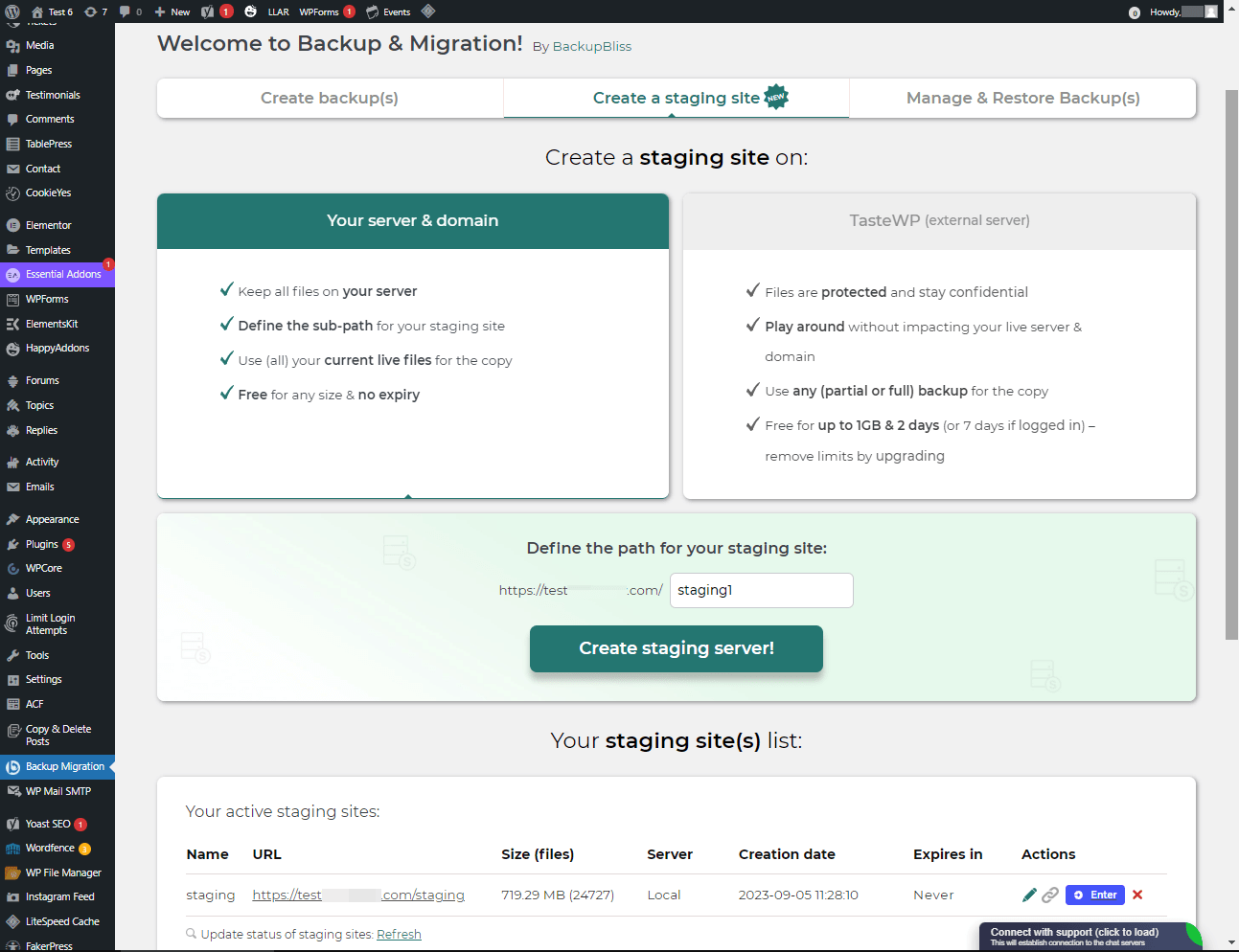
You can easily set up a staging environment for your website with the BackupBliss plugin. You can choose to create a staging site either on your server / machine or on TasteWP. Both options are free!
-
To create a staging site on your server, navigate to the plugin section “Create a staging site”, select “Your server & domain”, define a custom path if you wish, and click on the button “Create staging site!”.
-
To create a stage site on a free WordPress sandbox platform – TasteWP, select the option “TasteWP (external server)”, then select a backup file that will be used, and click on the button “Create staging site!”.
-
-
⭐️ NEW! Is cloud backup available?
-
Backup to Google Drive, OneDrive, FTP, Amazon S3, Wasabi, BackupBliss Storage, SFTP, pCloud and Dropbox are now available in the BackupBliss – Backup Migration Staging Pro
Upcoming storage options will include: Rackspace, DreamObjects, OpenStack, Google Cloud, Microsoft Azure, Backblaze, and more – vote for your favorite here. -
⭐️ NEW! How do I back up to Google Drive / OneDrive / BackupBliss Storage / Dropbox / pCloud / FTP / SFTP / Amazon S3/ Wasabi ?
-
In order to automatically upload your site backups to the Cloud, you will need a Pro version of the plugin. Once installed and activated, navigate to the plugin section “Where shall the backup(s) be stored?”, and turn ON the respective external storage feature. Click on the button Connect, and select the account you want to connect to. Once it is connected, your backup files from the website will start to sync to your connected storage. You can monitor the process in the plugin section “Manage & Restore Backups”
-
How are you better than other backup/migration plugins?
-
Besides having the most intuitive interface and smoothest user experience, BackupBliss – Backup Migration Staging plugin will always strive to give you more than any competitor:
– None of the competitors provides their own free backup cloud storage.
– Updraftplus: They charge for migration, with our plugin it’s free;
– All-in-One WP Migration: In the free version, compared to our plugin – they don’t have selective/partial backups; they lack advanced options and each external storage is on a separate extension plugin; they have no automatic backups;
– Duplicator: In the free version, compared to our plugin – they have no selective backups, exclusion rules, no automatic backups and no migration;
– WPvivid: In the free version, compared to our plugin – they don’t have selective/partial backups, exclusion rules, or automatic backups;
– BackWPup: In the free version, compared to our plugin – they lack restore options, backups are slower, automatic backups are dependant on wp cron;
– Backup Guard: In the free version, compared to our plugin – they have no selective backups, exclusion rules; no direct migration;
– XCloner: Automatic backups are dependent on WP Cron; full restore not available on a local server;
– Total Upkeep: They lack the advanced selective backups and exclusion rules, and lack a monthly backup schedule -
How to upload my backup file?
-
Uploading a backup can be simply done by navigating to the Manage & Restore Backup(s) section of the BM plugin (tab on the right side). There you have the “Upload backup file” button, after clicking on it, you need to select a proper backup that is made by this plugin only. You cannot use backups from other plugins (to restore those, go back to those plugins and restore them this way). If you use “Super-quick migration” (section b), your backup will be automatically uploaded. If you are having trouble uploading the backup file, go bac and ensure that the folder designated for backups is writable. You can find the backup destination in the plugin section “Where shall the backup(s) be stored?
-
Is the plugin also available in my language?
-
So far we have translated the plugin into these languages:
Arabic: إنشاء نسخة احتياطية واستعادة النسخ الاحتياطية وترحيل المواقع. أفضل مكون إضافي لمواقع الترحيل والاستنساخ!
Chinese (China): 创建备份、还原备份和迁移站点。 迁移和克隆网站的最佳插件!
Croatian: Izradite sigurnosnu kopiju, vratite sigurnosne kopije i migrirajte web-mjesta. Najbolji dodatak za migraciju i kloniranje web stranica!
Dutch: Maak back-ups, herstel back-ups en migreer sites. De beste plug-in voor het migreren en klonen van websites!
English: Create a backup, restore backups and migrate a website. The best plugin for migration and to clone a website
Finnish: Luo varmuuskopio, palauta varmuuskopiot ja siirrä sivustot. Paras laajennus sivustojen siirtoon ja kloonaukseen!
French (France): Créez des sauvegardes, restaurez des sauvegardes et migrez des sites. Le meilleur plugin pour les sites Web de migration et de clonage !
German: Erstellen Sie Backups, stellen Sie Backups wieder her und migrieren Sie Websites. Das beste Plugin für Migrations- und Klon-Websites!
Greek: Δημιουργία αντιγράφων ασφαλείας, επαναφορά αντιγράφων ασφαλείας και μετεγκατάσταση τοποθεσιών. Το καλύτερο πρόσθετο για μετανάστευση και κλωνοποίηση ιστοσελίδων!
Hungarian: Biztonsági másolat készítése, biztonsági másolatok visszaállítása és webhelyek migrálása. A legjobb bővítmény a webhelyek migrációjához és klónozásához!
Indonesian: Buat cadangan, pulihkan cadangan, dan migrasikan situs. Plugin terbaik untuk migrasi dan kloning situs web!
Italian: Crea backup, ripristina backup e migra i siti. Il miglior plugin per la migrazione e la clonazione di siti web!
Persian: ایجاد نسخه پشتیبان، بازیابی نسخه پشتیبان، و مهاجرت سایت ها. بهترین افزونه برای مهاجرت و شبیه سازی وب سایت ها!
Polish: Twórz kopie zapasowe, przywracaj kopie zapasowe i przenoś witryny. Najlepsza wtyczka do migracji i klonowania stron internetowych!
Portuguese (Brazil): Crie backup, restaure backups e migre sites. O melhor plugin para migração e clonagem de sites!
Russian: Создавайте резервные копии, восстанавливайте резервные копии и переносите сайты. Лучший плагин для миграции и клонирования сайтов!
Spanish: Cree copias de seguridad, restaure copias de seguridad y migre sitios. ¡El mejor complemento para sitios web de migración y clonación!
Turkish: Yedekleme oluşturun, yedeklemeleri geri yükleyin ve site taşıyın. Websitesi taşımaya ve klonlamaya yönelik en iyi eklentidir!
Vietnamese: Tạo sao lưu, khôi phục các bản sao lưu và di chuyển các trang web. Plugin tốt nhất để di chuyển và sao chép các trang web!
Reviews


Contributors & Developers
“Backup Migration” is open source software. The following people have contributed to this plugin.
Contributors

“Backup Migration” has been translated into 28 locales. Thank you to the translators for their contributions.
Translate “Backup Migration” into your language.
Interested in development?
Browse the code, check out the SVN repository, or subscribe to the development log by RSS.
Changelog
2.1.7
- Tested with WordPress 7.0.3
- [FEATURE] Added WP-CLI commands for backup, restore, and quick migration operations.
- [FEATURE] Added remote execution support for scheduled backups with improved cron logging and management.
- [FEATURE] Added WP-Cron fallback for keepalive heartbeats to improve backup upload reliability.
- [FEATURE] Added watchdog monitoring to detect and handle stalled scheduled backup processes.
- [FEATURE] Introduced a new plugin configuration management system with improved migration and initialization of existing settings.
- [FEATURE] Added interactive backup deletion progress with cancellation support and batch processing for large numbers of backups.
- [FEATURE] Added detailed fatal error detection and reporting for memory and execution time limit failures.
- [FEATURE] Added manual backup abortion tracking.
- [ENHANCEMENT] Improved backup scanning and retrieval performance for large backup collections.
- [ENHANCEMENT] Improved backup search performance.
- [ENHANCEMENT] Improved file handle management during backup, restore, logging, and keepalive operations to reduce resource usage on limited hosting environments.
- [ENHANCEMENT] Improved backup and restore error handling with clearer and more consistent logging.
- [ENHANCEMENT] Improved theme and plugin restoration handling for invalid or incomplete site states.
- [ENHANCEMENT] Enhanced Elementor compatibility by clearing its cache after restoration.
- [ENHANCEMENT] Improved scheduled backup reliability with persistent keepalive scheduling and cron state management.
- [ENHANCEMENT] Increased maximum backup retention options from 20 to 30.
- [ENHANCEMENT] Added multisite compatibility checks, recommendations, and staging notices.
- [ENHANCEMENT] Improved backup deletion handling across local and external storage providers.
- [ENHANCEMENT] Improved UI modals, tooltips, backup deletion flows, and encryption-related warnings.
- [FIX] Prevented unauthorized cron execution by enforcing secret key validation.
- [FIX] Secured backup log downloads using nonces and improved autologin security with hashed tokens.
- [FIX] Prevented unwanted plugin redirects during bulk activation.
- [FIX] Fixed multisite plugin URLs, redirects, and network admin visibility.
- [FIX] Restored permalink structure correctly after staging and autologin redirects.
- [FIX] Ensured rewrite rules are regenerated correctly after restoration.
- [FIX] Prevented restored staging configurations from incorrectly affecting the main site.
- [FIX] Fixed Elementor cache not being cleared after restoration.
- [FIX] Improved plugin activation handling and version validation during restoration.
- [FIX] Fixed extraction of password-protected backups by correctly passing the extraction password.
- [FIX] Improved detection and handling of missing manifests and backup files during backup scanning.
- [FIX] Prevented resource leaks by properly closing file handles after AJAX and keepalive operations.
- [FIX] Improved backup cancellation reliability and cleanup of temporary backup files.
- [FIX] Fixed large backup deletion operations by processing file deletions in batches to prevent timeouts.
- [FIX] Improved backup space calculations and validation.
- [FIX] Fixed configuration migration and initialization issues that could unexpectedly reset plugin settings.
- [FIX] Improved backup restoration checks for options SQL files and other required backup components.
- [FIX] Improved handling of missing or invalid backup manifest data.
- [SECURITY] Hardened autologin, cron execution, and backup download authentication mechanisms.
- [REFACTOR] Optimized backup scanning using generators, caching, and singleton instances for improved performance.
- [REFACTOR] Streamlined backup deletion and manifest management across local and cloud storage.
- [MISC] Various performance improvements, security hardening, UI refinements, compatibility fixes, and internal code cleanups throughout the plugin.